How to Import a YouTube Clip into Synthesia in 2026 (Plus 4 Better AI Workflows)
Want to import a YouTube clip into Synthesia? See the 2026 workaround, plus faster AI workflows with Argil and Opus Clip.
We've just built the most complete FREE resource to leverage AI avatars in your business. We've centralized 50 use cases across 4 categories (Personal Branding, Marketing and Sales, Internal and Enterprise, and Educational and side-hustles). You can access it here NOW. Enjoy :)
There are many reasons to import a YouTube clip into Synthesia. You may be repurposing or localizing existing video content, using it as a basis for your own analysis or reaction, or adding clips to a video essay.
With the continued rise of AI assisted video creation and the growing popularity of tools like Synthesia, Opus Clip, and Google's Veo 3, there is still strong demand for quick and scalable video repurposing in 2026. With the right tools, you can build an automated workflow that removes most of the manual video production work and maximizes the value of your content.
Synthesia is a commonly used video generation tool, particularly popular with businesses and marketing teams. However, it may not be the best platform for handling user imported clips. In this article, we'll show you how to import a YouTube clip into Synthesia in 2026, as well as some alternative workflows using Argil and Opus Clip.
How to Import YouTube Clips Into Synthesia in 5 Steps
Importing your own YouTube content is a good way to repurpose and localize existing content, but importing someone else's content requires proper licensing and permission from content owners.
There is no way to paste a YouTube link into the Synthesia editor, and that is still the case in 2026. Synthesia's scenes and Media Library take uploaded files only, and its own media guide lists the accepted video types as .mp4 and .webm up to 250MB. So the route in is a workaround: pull the clip down with a tool like 4K Video Downloader Plus or YT5s, convert it to MP4, and upload that file. You'll also need a Synthesia Studio account.
Before proceeding, make sure you have proper licensing rights for the video or permission from the original content creator.
Step 1: Copy the YouTube Video URL
First, navigate to the YouTube video you want to import into Synthesia, making sure it is set to the exact timestamp range you need. Then copy the URL from your browser's address bar.
Step 2: Download and Convert the Video
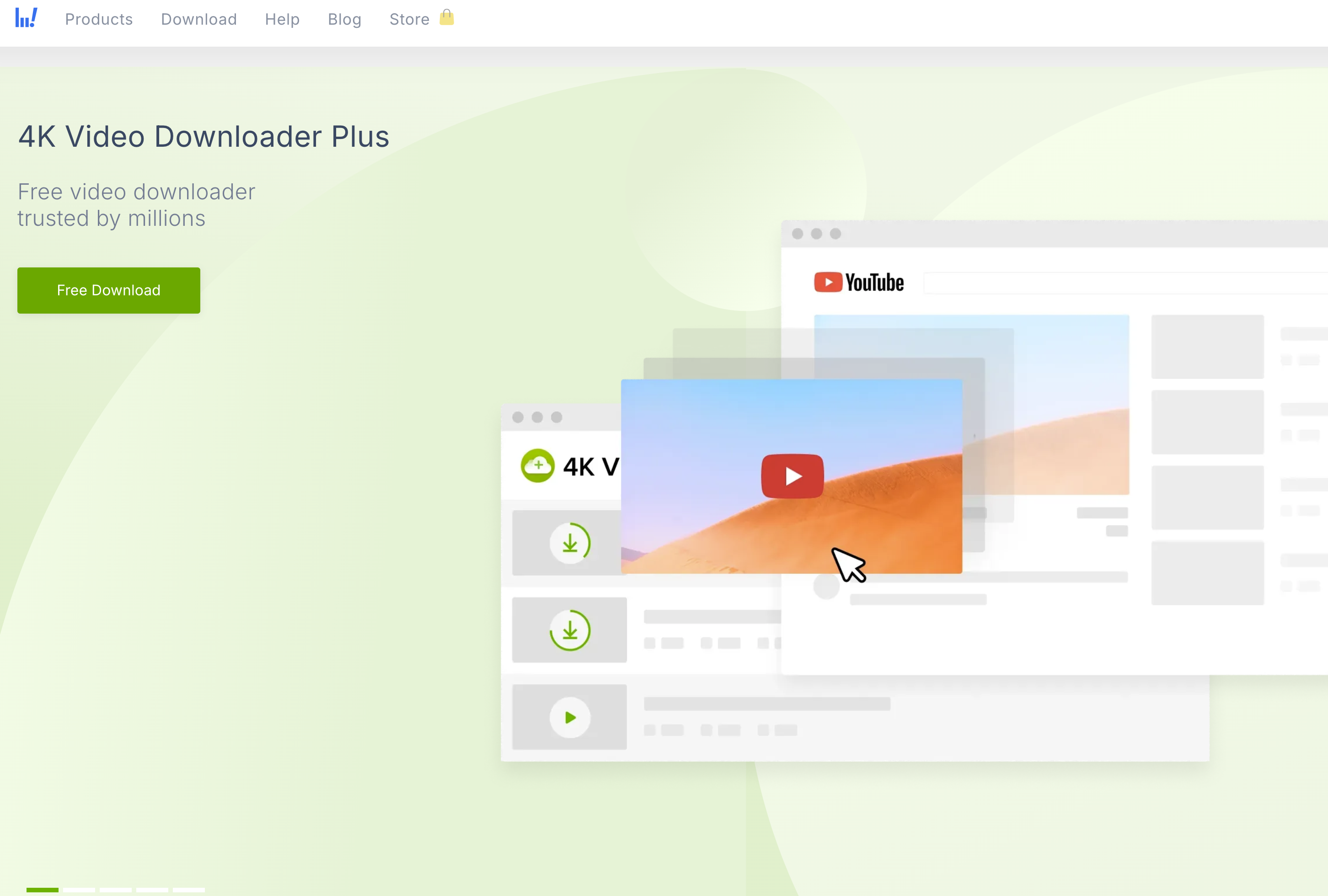
Next, launch your 4K Video Downloader Plus application and click 'Paste Link'. Here, you can input your copied YouTube URL. You should then set your video quality and choose the MP4 format in the download settings, then hit 'Download'. The app pulls the whole video, there is no segment or time range setting in it, so if you only want one part of the clip you cut it down afterwards. Synthesia can do that cut for you once the file is uploaded, so you do not need a second editor for it.
Step 3: Prepare and Optimize the File
Before you import a YouTube clip into Synthesia, check the file against the technical requirements. Synthesia accepts MP4 and WebM video files up to 250MB each, so if your downloaded clip is larger than that, trim it or compress it first. MP4 with an H.264 codec is the safest, most compatible choice. Once the file is under the size limit, it is ready for Synthesia's media library.
Step 4: Upload to Synthesia
When your video is ready, log in to your Synthesia Studio account and open the Library tab under Assets in the left hand menu, go to the Media Library and select 'Upload media'. You'll need to upload or drag and drop your MP4 file and then wait for it to process. Once it's in, the 3 dot menu on the asset lets you rename, download or delete it, and you can pull it into a new video project. Name it properly on the way in, because Synthesia's Media Library has no tags and no folders. Assets you upload here are available to everyone in the same workspace, so you only need to import a given clip once.
Step 5: Integrate with AI Avatar Content
Start a new video project in Synthesia, then select 'Media' at the top of the canvas and pick your uploaded YouTube clip. It drops onto the scene canvas, where you can move, resize and position it in line with your avatar. To run it full screen behind your avatar instead, toggle on 'Background media' in the right side toolbar and choose your uploaded file, then have your AI clone speak over the top. Side by side layouts work the same way, you just resize and reposition on the canvas.
This is also where you trim. Select the clip, hit 'Trim' in the inspector panel, and Synthesia opens a video editor with a seek bar and a zoom slider for precise in and out points. If you want more control over how your avatar moves and gestures around the imported clip, our guide to avatar gestures and body language in Synthesia is a useful next read.
The Limitations of Synthesia for Imported Video Clips
There are multiple workarounds to import a YouTube clip into Synthesia, but it's still not the most effective way to repurpose content in 2026. For starters, there's a lot of manual effort involved in the workflow above. Every new clip goes through the same download, convert and size check loop before you can touch it in the editor, and even then, you may find that the output isn't as high quality as you expected.
You may also find that Synthesia doesn't support your imported clip, for instance, if it's over the 250MB file size limit or there are ownership issues.
One Synthesia tool does take a YouTube link. Dub a Video is available on all plans and accepts either an uploaded file or a pasted URL, with optional lip sync. The restrictions sit on the output. On Basic, Starter and Creator plans you cannot publish a video dubbed from a YouTube link, editing a dub is Enterprise only, and the dubbed file lands as its own video in My Videos, so you cannot build an avatar scene around it.
The alternative is an AI assisted workflow. Tools like Argil and Opus Clip take out the download and convert loop and get you to a finished short faster. If you want a wider comparison before you pick one, our rundown of Synthesia alternatives for content creators and our look at the best clipping software of 2026 cover the rest of the field.
AI Driven Alternatives to Import a YouTube Clip into Synthesia
Argil: Avatars Over Your Source Clip
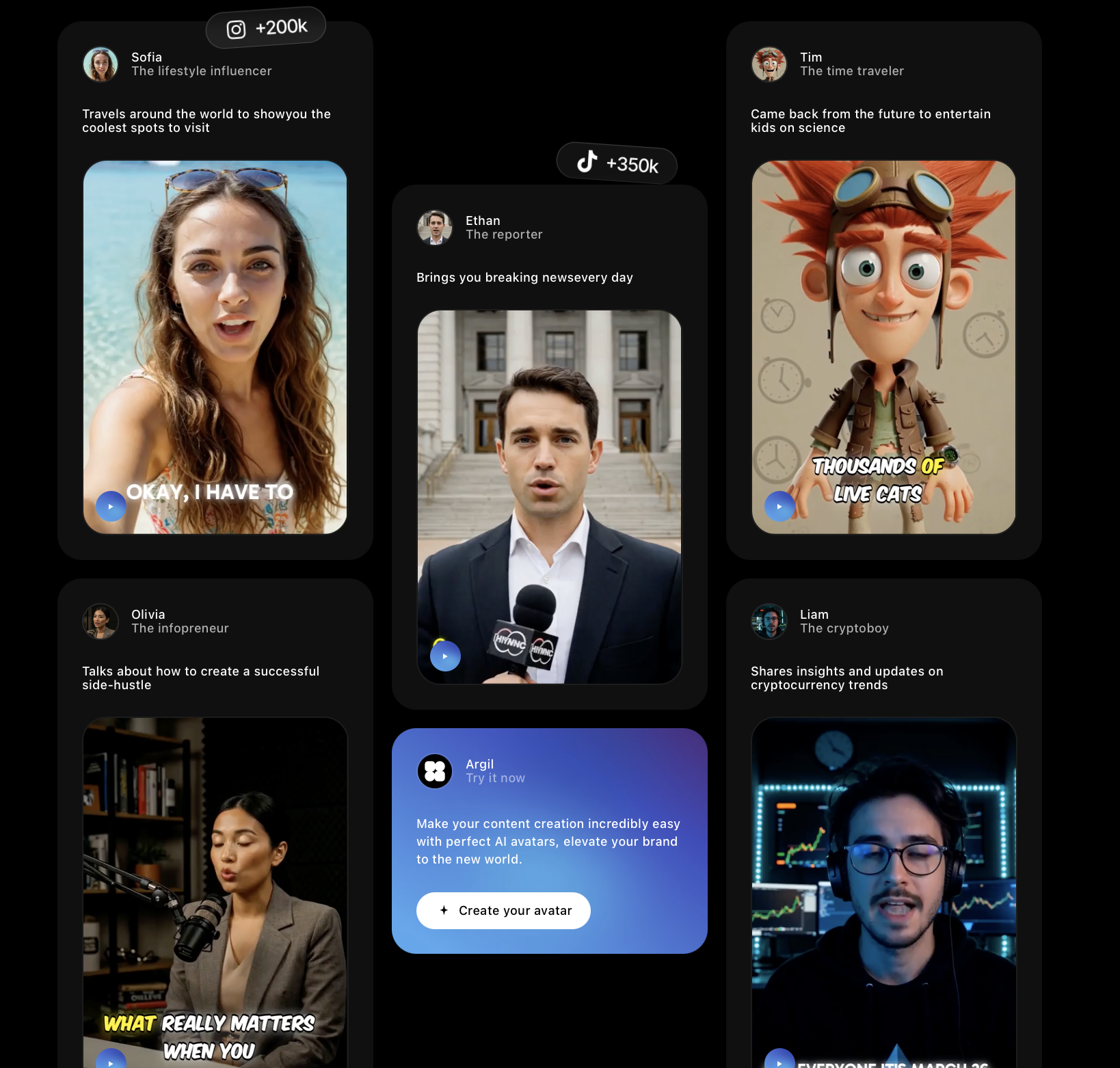
Argil specializes in creating AI powered short videos using AI avatars in a few clicks. Synthesia will not touch a clip until you have downloaded and converted it. Argil takes a link or a file straight in, and puts the avatar in front of the footage.
Step 1: Create Your AI Avatar
Upload a video of yourself speaking and Argil trains an AI clone on your expressions and body language. Our training guide asks for two minutes minimum and recommends capturing three minutes of natural speech, unedited, with no cuts or black frames. Voice is a separate step: pick one in the Voices tab, prompt your own, or record a pro voice and link it to the avatar if you want it to sound like you.
Step 2: Bring In Your Source Content
There is no manual download and MP4 conversion step here. Our article to video template takes the link of an article or blog post, writes the script and pulls in the images and videos it finds on the page, so the first thing you see is a filled-in draft. If you already have the clip as a file, upload it to Assets once and it's available as B roll in every video. Through the API you can also hand Argil a public file URL and it fetches the asset itself.
Step 3: Generate Your Video Using AI
Write your script responding to or commenting on the source content, then set your options in the editor: a B roll type, captions, a layout and a background music track. Argil assembles the rest. For reaction content the layout does the work: full screen avatar, small avatar in a corner with your media behind, split screen top and bottom or left and right, or the avatar hidden with the media in front. If you want the gestures to match the moment, Motion Control transfers movement from a reference video onto your clone, and you can tweak appearance and styles in the editing interface.
Step 4: Get the Video Out
Every finished video comes with a URL you can download, share or publish from, so there's no manual file handling at the end either. If you integrate with Make.com, you can build your own custom workflow off that URL, pushing the video into scheduling tools, a CMS or email software. Argil does not ship native one click posting to social platforms, so Make is how you automate that last step today.
Opus Clip: YouTube Integration without Avatars
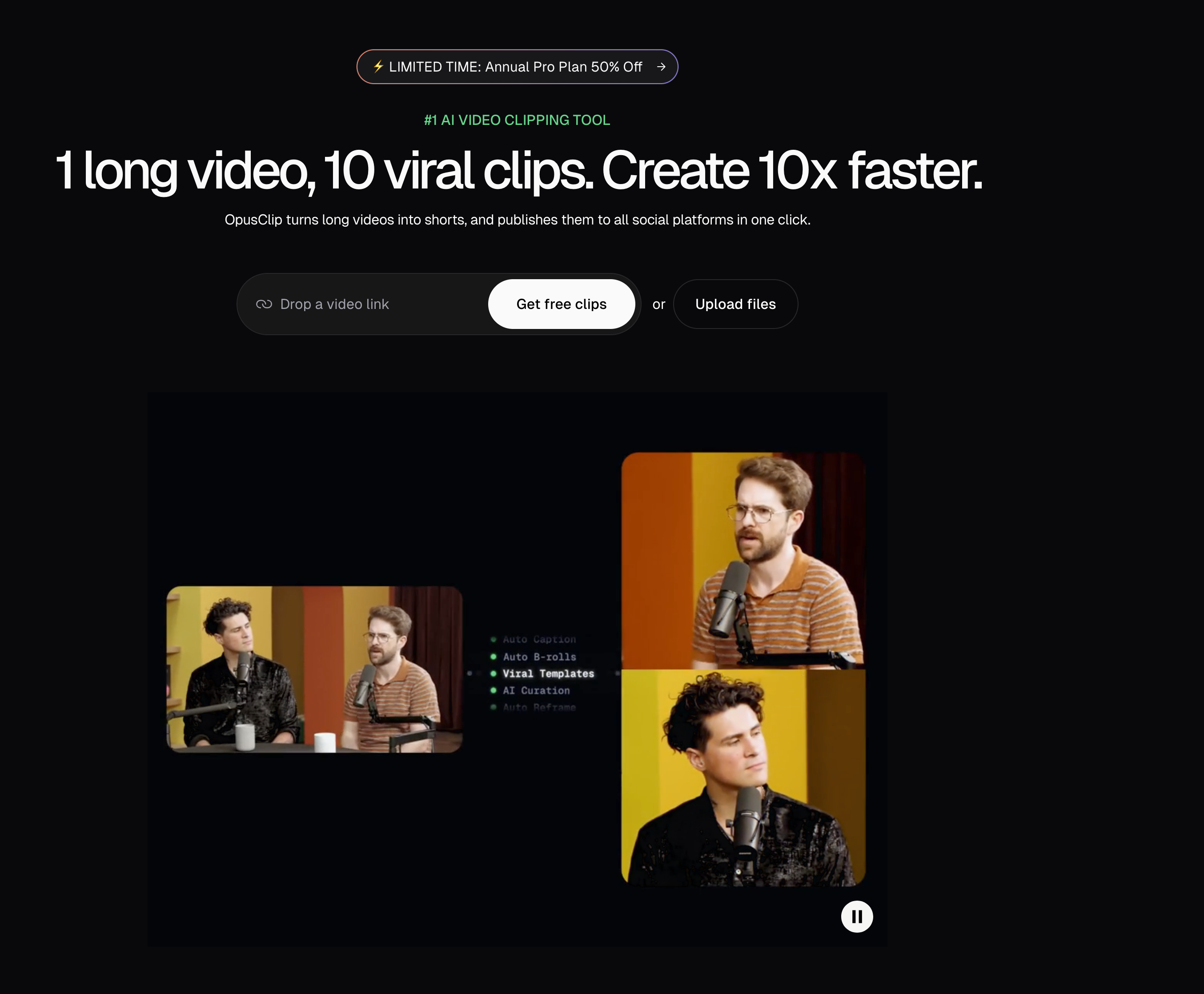
Opus Clip also supports direct YouTube imports and offers AI content analysis to help you identify viral moments. Like Argil, the process is simple. You just paste in your video URL, and Opus Clip will let you edit using automatic B roll, trimming and scene reordering, auto generated captions, and an AI reframe that keeps a moving subject centered when it resizes to 9:16, 16:9 or 1:1.
The main downside of Opus Clip is that it's primarily a tool for clipping down and repurposing longer video content, and it doesn't let you add AI avatars. Its AI video editor page says so outright: the AI Producer edits your real footage and "never generates avatars, synthetic presenters, or a fake voice". If you want to add commentary or adopt a more personalized approach, you'll need to use Argil.
Repurpose YouTube Videos with Argil Today
There are workarounds if you want to import a YouTube clip into Synthesia, but this still isn't the best way to repurpose your video content in 2026.
As covered above, there is no YouTube link import in the Synthesia editor, so the process requires manual work and file handling within its 250MB upload limit. Opus Clip accepts a YouTube URL with no conversion at all, but you won't get an avatar out of it. With Argil you hand over a link or a file and a lifelike AI avatar reacts to or comments on your original video. Sign up today to get started.